Window: Document Type
[Created: 29/06/1999 - Updated: 02/01/2000 ]
Description: Maintain Document Types
Help: The Document Type Window defines any document to be used in the system. Each document type provides the basis for processing of each document and controls the printed name and document sequence used.
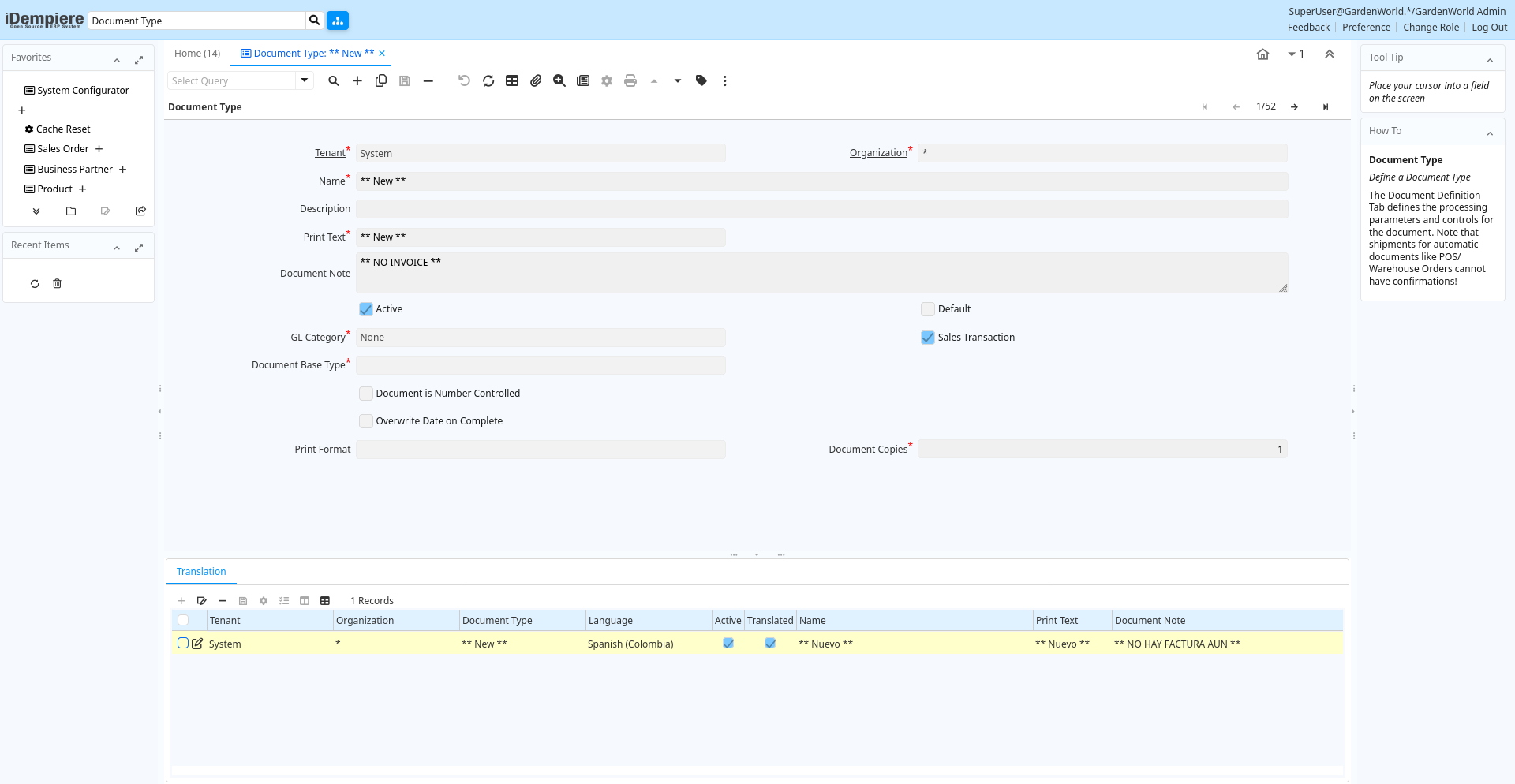
Tab: Document Type
[Created: 29/06/1999 - Updated: 07/02/2005 ]
Description: Define a Document Type
Help: The Document Definition Tab defines the processing parameters and controls for the document. Note that shipments for automatic documents like POS/Warehouse Orders cannot have confirmations!
Tab Level: 0
Table 10: Document Type - Fields
Table: Report Parameters
| Name | Description | Help | Technical Info |
|---|---|---|---|
| Tenant | Tenant for this installation. | A Tenant is a company or a legal entity. You cannot share data between Tenants. | c_doctype.AD_Client_ID numeric(10) Table Direct |
| Organization | Organizational entity within tenant | An organization is a unit of your tenant or legal entity - examples are store, department. You can share data between organizations. | c_doctype.AD_Org_ID numeric(10) Table Direct |
| Name | Alphanumeric identifier of the entity | The name of an entity (record) is used as an default search option in addition to the search key. The name is up to 60 characters in length. | c_doctype.Name character varying(60) String |
| Description | Optional short description of the record | A description is limited to 255 characters. | c_doctype.Description character varying(255) String |
| Print Text | The label text to be printed on a document or correspondence. | The Label to be printed indicates the name that will be printed on a document or correspondence. The max length is 2000 characters. | c_doctype.PrintName character varying(60) String |
| Document Note | Additional information for a Document | The Document Note is used for recording any additional information regarding this product. | c_doctype.DocumentNote character varying(2000) Text |
| Active | The record is active in the system | There are two methods of making records unavailable in the system: One is to delete the record, the other is to de-activate the record. A de-activated record is not available for selection, but available for reports.There are two reasons for de-activating and not deleting records:(1) The system requires the record for audit purposes.(2) The record is referenced by other records. E.g., you cannot delete a Business Partner, if there are invoices for this partner record existing. You de-activate the Business Partner and prevent that this record is used for future entries. | c_doctype.IsActive character(1) Yes-No |
| Default | Default value | The Default Checkbox indicates if this record will be used as a default value. | c_doctype.IsDefault character(1) Yes-No |
| GL Category | General Ledger Category | The General Ledger Category is an optional, user defined method of grouping journal lines. | c_doctype.GL_Category_ID numeric(10) Table Direct |
| Sales Transaction | This is a Sales Transaction | The Sales Transaction checkbox indicates if this item is a Sales Transaction. | c_doctype.IsSOTrx character(1) Yes-No |
| Document Base Type | Logical type of document | The Document Base Type identifies the base or starting point for a document. Multiple document types may share a single document base type. | c_doctype.DocBaseType character(3) List |
| SO Sub Type | Sales Order Sub Type | The SO Sub Type indicates the type of sales order this document refers to. This field only appears when the Document Base Type is Sales Order. The selection made here will determine which documents will be generated when an order is processed and which documents must be generated manually or in batches. The following outlines this process.SO Sub Type of Standard Order will generate just the Order document when the order is processed. The Delivery Note, Invoice and Receipt must be generated via other processes. SO Sub Type of Warehouse Order will generate the Order and Delivery Note. The Invoice and Receipt must be generated via other processes.SO Sub Type of Credit Order will generate the Order, Delivery Note and Invoice. The Receipt must be generated via other processes.SO Sub Type of POS (Point of Sale) will generate all document | c_doctype.DocSubTypeSO character(2) List |
| Inv Sub Type | Inventory Sub Type | The Inventory Sub Type indicates the type of inventory this document refers to. This field only appears when the Document Base Type is Material Physical Inventory. The selection made here will determine which window must be used and which data in the lines is relevant for the document. Internal Use inventory (based on Internal Used Quantity) or Physical Inventory (based on difference between Qty Counted vs Qty Book) | c_doctype.DocSubTypeInv character varying(2) List |
| Pro forma Invoice | Indicates if Pro Forma Invoices can be generated from this document | The Pro Forma Invoice checkbox indicates if pro forma invoices can be generated from this sales document. A pro forma invoice indicates the amount that will be due should an order be shipped. | c_doctype.HasProforma character(1) Yes-No |
| Document Type for ProForma | Document type used for pro forma invoices generated from this sales document | he Document Type for Invoice indicates the document type that will be used when an invoice is generated from this sales document. This field will display only when the base document type is Sales Order and the Pro Forma Invoice checkbox is selected | c_doctype.C_DocTypeProforma_ID numeric(10) Table |
| Generate Invoice | Automatically Generate Invoice after (Sales/Purchase) Order completed | When selected the Order will generate Invoice automatically. Note that only Orders with document subtype Standard and Prepay Order can be applied! | c_doctype.IsAutoGenerateInvoice character(1) Yes-No |
| Document Type for Invoice | Document type used for invoices generated from this sales document | The Document Type for Invoice indicates the document type that will be used when an invoice is generated from this sales document. This field will display only when the base document type is Sales Order. | c_doctype.C_DocTypeInvoice_ID numeric(10) Table |
| Generate Shipment | Automatically Generate Shipment after (Sales/Purchase) Order completed | When selected the Order will generate Shipment automatically. Note that only Orders with document subtype Standard and Prepay Order can be applied! | c_doctype.IsAutoGenerateInout character(1) Yes-No |
| Document Type for Shipment | Document type used for shipments generated from this sales document | he Document Type for Shipments indicates the document type that will be used when a shipment is generated from this sales document. This field will display only when the base document type is Sales Order. | c_doctype.C_DocTypeShipment_ID numeric(10) Table |
| Document is Number Controlled | The document has a document sequence | The Document Number Controlled checkbox indicates if this document type will have a sequence number. | c_doctype.IsDocNoControlled character(1) Yes-No |
| Document Sequence | Document sequence determines the numbering of documents | The Document Sequence indicates the sequencing rule to use for this document type. | c_doctype.DocNoSequence_ID numeric(10) Table |
| Overwrite Sequence on Complete | c_doctype.IsOverwriteSeqOnComplete character(1) Yes-No | ||
| Definite Sequence | c_doctype.DefiniteSequence_ID numeric(10) Table | ||
| Overwrite Date on Complete | c_doctype.IsOverwriteDateOnComplete character(1) Yes-No | ||
| Allow Product Without Price List | Allow product without price list on this document type. | c_doctype.IsNoPriceListCheck character(1) Yes-No | |
| Pick/QA Confirmation | Require Pick or QA Confirmation before processing | The processing of the Shipment (Receipt) requires Pick (QA) Confirmation. Note that shipments for automatic documents like POS/Warehouse Orders cannot have confirmations! | c_doctype.IsPickQAConfirm character(1) Yes-No |
| Ship/Receipt Confirmation | Require Ship or Receipt Confirmation before processing | The processing of the Shipment (Receipt) requires Ship (Receipt) Confirmation. Note that shipments for automatic documents like POS/Warehouse Orders cannot have confirmations! | c_doctype.IsShipConfirm character(1) Yes-No |
| Split when Difference | Split document when there is a difference | If the confirmation contains differences, the original document is split allowing the original document (shipment) to be processed and updating Inventory - and the newly created document for handling the dispute at a later time. Until the confirmation is processed, the inventory is not updated. | c_doctype.IsSplitWhenDifference character(1) Yes-No |
| Difference Document | Document type for generating in dispute Shipments | If the confirmation contains differences, the original document is split allowing the original document (shipment) to be processed and updating Inventory - and the newly created document for handling the dispute at a later time. Until the confirmation is processed, the inventory is not updated. | c_doctype.C_DocTypeDifference_ID numeric(10) Table |
| Prepare Split Document | Prepare generated split shipment/receipt document | c_doctype.IsPrepareSplitDocument character(1) Yes-No | |
| In Transit | Movement is in transit | Material Movement is in transit - shipped, but not received.The transaction is completed, if confirmed. | c_doctype.IsInTransit character(1) Yes-No |
| Create Counter Document | Create Counter Document | If selected, create specified counter document. If not selected, no counter document is created for the document type. | c_doctype.IsCreateCounter character(1) Yes-No |
| Default Counter Document | The document type is the default counter document type | When using explicit documents for inter-org transaction (after linking a Business Partner to an Organization), you can determine what document type the counter document is based on the document type of the original transaction. Example: when generating a Sales Order, use this Sales Order document type.This default can be overwritten by defining explicit counter document relationships. | c_doctype.IsDefaultCounterDoc character(1) Yes-No |
| Mandatory Charge or Product | c_doctype.IsChargeOrProductMandatory character(1) Yes-No | ||
| Print Format | Data Print Format | The print format determines how data is rendered for print. | c_doctype.AD_PrintFormat_ID numeric(10) Table Direct |
| Document Copies | Number of copies to be printed | The Document Copies indicates the number of copies of each document that will be generated. | c_doctype.DocumentCopies numeric(10) Integer |
Tab: Translation
[Created: 04/12/1999 - Updated: 27/10/2024 ]
Description: Translation
Help: The Translation Tab defines a Document Type in an alternate language.
Tab Level: 1
Table 20: Translation - Fields
Table: Report Parameters
| Name | Description | Help | Technical Info |
|---|---|---|---|
| Tenant | Tenant for this installation. | A Tenant is a company or a legal entity. You cannot share data between Tenants. | c_doctype_trl.AD_Client_ID numeric(10) Table Direct |
| Organization | Organizational entity within tenant | An organization is a unit of your tenant or legal entity - examples are store, department. You can share data between organizations. | c_doctype_trl.AD_Org_ID numeric(10) Table Direct |
| Document Type | Document type or rules | The Document Type determines document sequence and processing rules | c_doctype_trl.C_DocType_ID numeric(10) Table Direct |
| Language | Language for this entity | The Language identifies the language to use for display and formatting | c_doctype_trl.AD_Language character varying(6) Table |
| Active | The record is active in the system | There are two methods of making records unavailable in the system: One is to delete the record, the other is to de-activate the record. A de-activated record is not available for selection, but available for reports.There are two reasons for de-activating and not deleting records:(1) The system requires the record for audit purposes.(2) The record is referenced by other records. E.g., you cannot delete a Business Partner, if there are invoices for this partner record existing. You de-activate the Business Partner and prevent that this record is used for future entries. | c_doctype_trl.IsActive character(1) Yes-No |
| Translated | This column is translated | The Translated checkbox indicates if this column is translated. | c_doctype_trl.IsTranslated character(1) Yes-No |
| Name | Alphanumeric identifier of the entity | The name of an entity (record) is used as an default search option in addition to the search key. The name is up to 60 characters in length. | c_doctype_trl.Name character varying(60) String |
| Print Text | The label text to be printed on a document or correspondence. | The Label to be printed indicates the name that will be printed on a document or correspondence. The max length is 2000 characters. | c_doctype_trl.PrintName character varying(60) String |
| Document Note | Additional information for a Document | The Document Note is used for recording any additional information regarding this product. | c_doctype_trl.DocumentNote character varying(2000) Text |